
How to Split a PDF into Separate Pages
A 60-page report, and you only need the 5 pages about your department. A book-length PDF, and your teacher asked for chapter 3 only. Sending the whole file is clumsy — splitting out exactly the pages you need is the professional move.
Here is how to do it in your browser, with two different splitting styles depending on what you want.
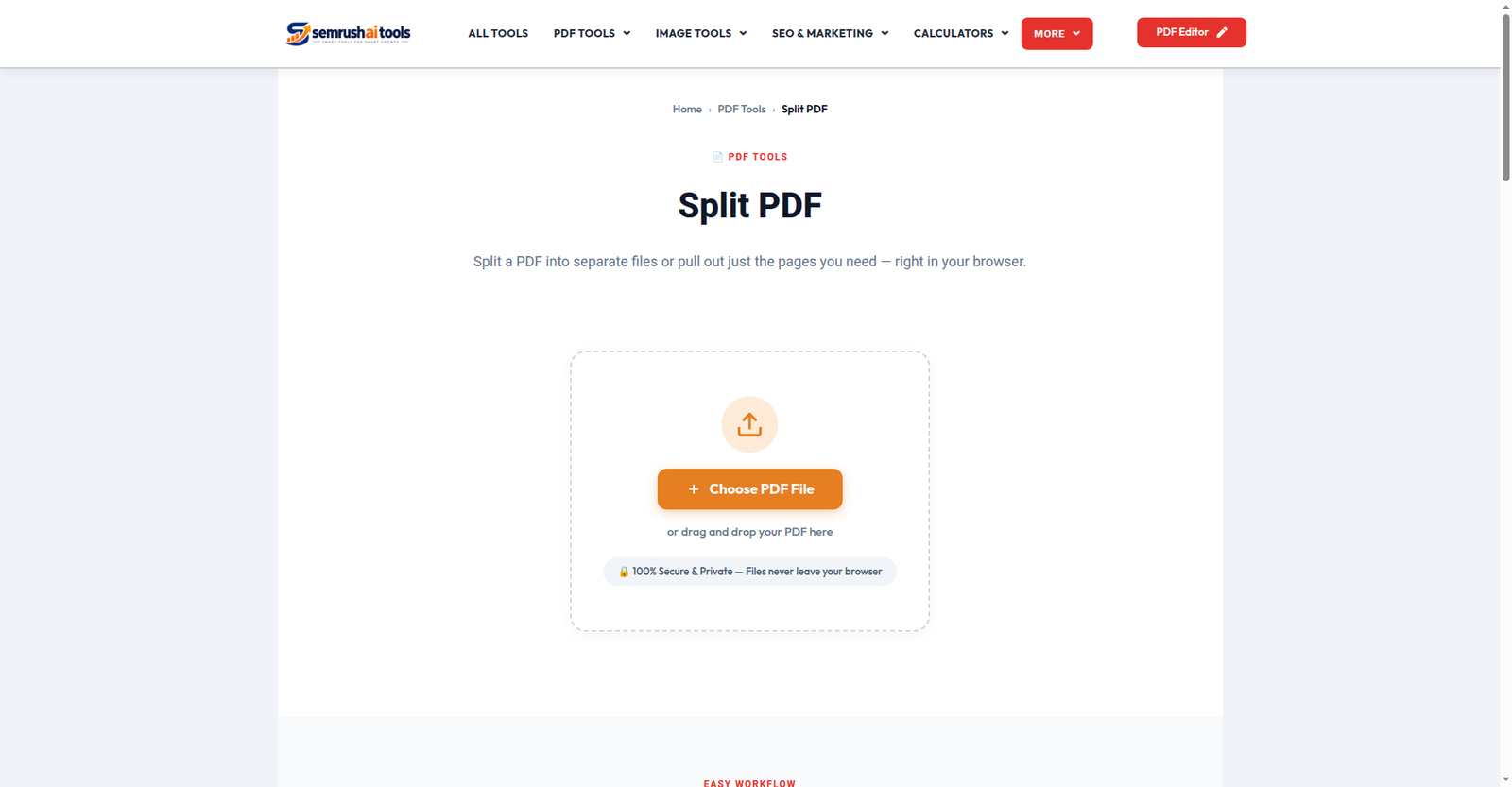
Step 1: Upload your PDF
Open the Split PDF tool and drop your file in. Every page appears as a thumbnail, so you can see exactly what you are working with. Your file is processed entirely in your browser — it is never uploaded to any server, so private documents stay private.
Step 2: Choose your split mode
- Extract pages — the most common choice. Type the pages you want (for example
3-7or1,5,9) or click thumbnails to select them. One result file contains exactly those pages. - Split by ranges — give page ranges like
1-10, 11-20and get one separate PDF per range. - Split all pages — turn a long PDF into individual one-page files (downloaded together as a ZIP so you get them all in one click).
Step 3: Download the result
Click Split PDF. Your new file downloads instantly — or a ZIP if you made several. No watermark, no file-size tricks, no account.
Tips for cleaner splits
- Check the thumbnails, not the page numbers in your head. Scanned PDFs sometimes start numbering on a cover page you forgot about.
- Need to split AND rearrange? Split first, then feed the pieces into the Merge PDF tool in the order you want.
- Only one page left over? Extract mode with a single page number gives you that page as its own PDF.
Frequently asked questions
Is there a limit on file size or page count? No artificial limits — splitting runs on your own device, so you are bounded only by your browser’s memory.
Can I split a password-protected PDF? The tool needs to read the file, so remove the password first with the Remove PDF Password tool.
Will the output keep its quality? Yes — splitting copies pages as they are; nothing is re-compressed or degraded.
Splitting a PDF should take less than a minute. Try the free Split PDF tool and stop emailing 60 pages when 5 will do.
Related: Extract PDF Pages · Merge PDF · Delete PDF Pages