
How to Remove a Password from a PDF You Own
You locked a PDF months ago to keep it safe. Now the password prompt annoys you every single time you open your own file. Or you are the office person everyone asks to “just open this” because only you remember the code. Either way, the fix is simple: take the password off the file you own and stop typing it forever.
One important boundary first: this only works when you know the password. The tool needs the correct password to open the file — it cannot crack, guess or bypass a password you don’t have.
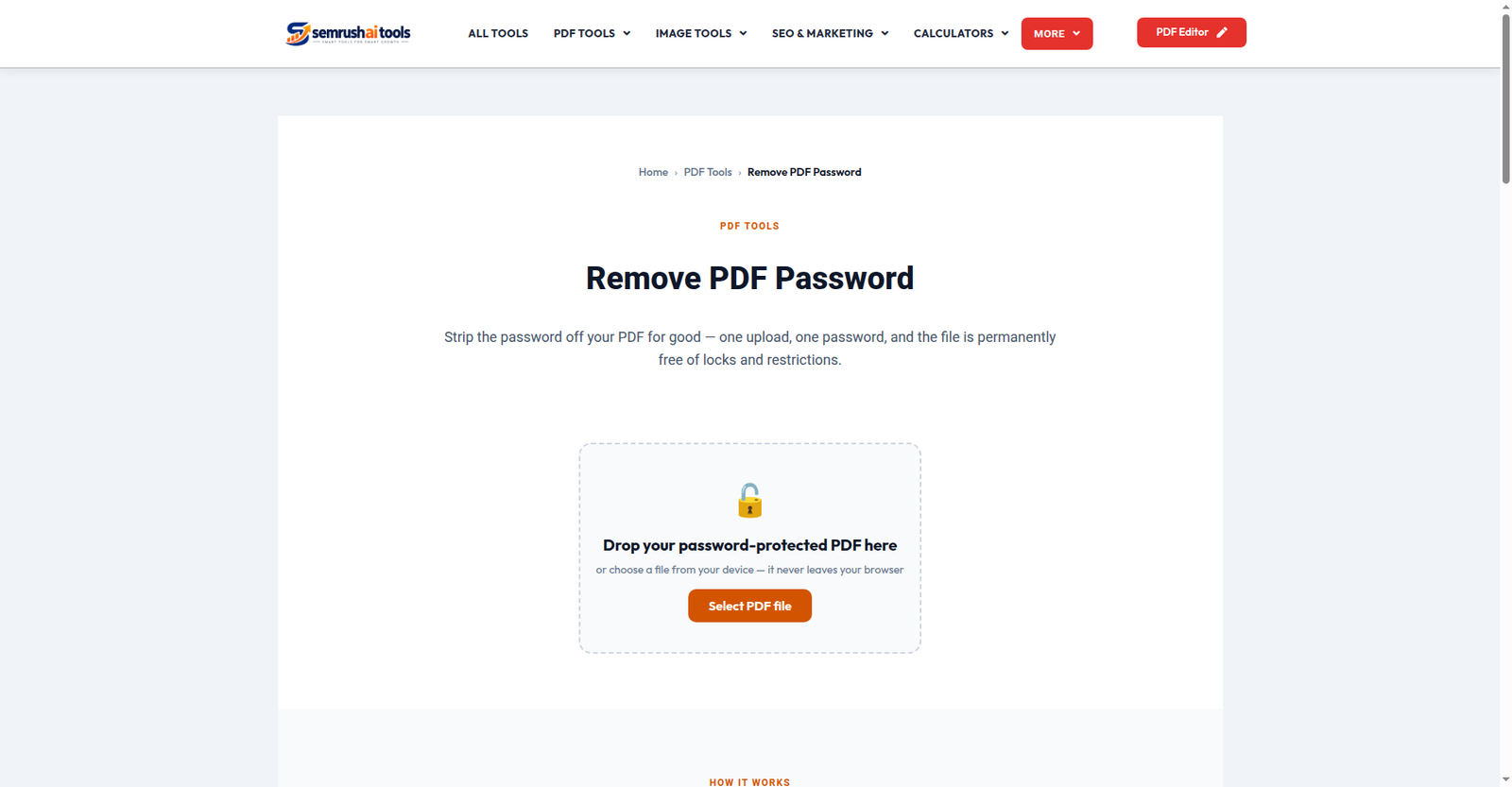
Step 1: Upload your PDF
Open the Remove PDF Password tool and add the protected file. Everything runs in your browser — your file and its password are never sent to any server, which is exactly what you want when handling passwords.
Step 2: Enter the password
Type the PDF’s current password. The tool uses it to unlock the file — the same way your PDF reader does when you open it normally.
Step 3: Save the unlocked copy
Click to remove the protection. You get a new PDF that opens directly, with no password prompt — ready to keep, share or edit.
When this works — and when it doesn’t
- Works: standard password-protected PDFs where you know the password — the everyday case.
- May fail: files locked with unusual or very new encryption methods that browsers can’t process, or files with heavy permission restrictions. If it fails, the tool will tell you plainly rather than produce a broken file.
- Never: removing a password from a file that isn’t yours. That’s not what this tool is for.
Practical tips
- Keep the original filename. Save the unlocked copy with the same name plus something like
-unlockedso you can tell them apart later. - Re-lock if it still needs protection. If the document is sensitive, consider whether removing the password is wise at all — convenience and security pull in opposite directions.
- Sharing with someone? An unlocked copy is the polite way to send a file — nobody enjoys receiving a locked document with the password in a separate message.
Stop typing that password every day. Remove the password from your PDF now — free, private, in your browser.
Related: Unlock PDF · PDF Metadata Remover · Merge PDF