
How to Add Page Numbers to a PDF
A report, a thesis, a contract, a book manuscript — any long document without page numbers feels unfinished and is genuinely harder to navigate. “Go to page 14” means nothing if the pages aren’t numbered. The good news: adding page numbers takes about a minute and needs no software.
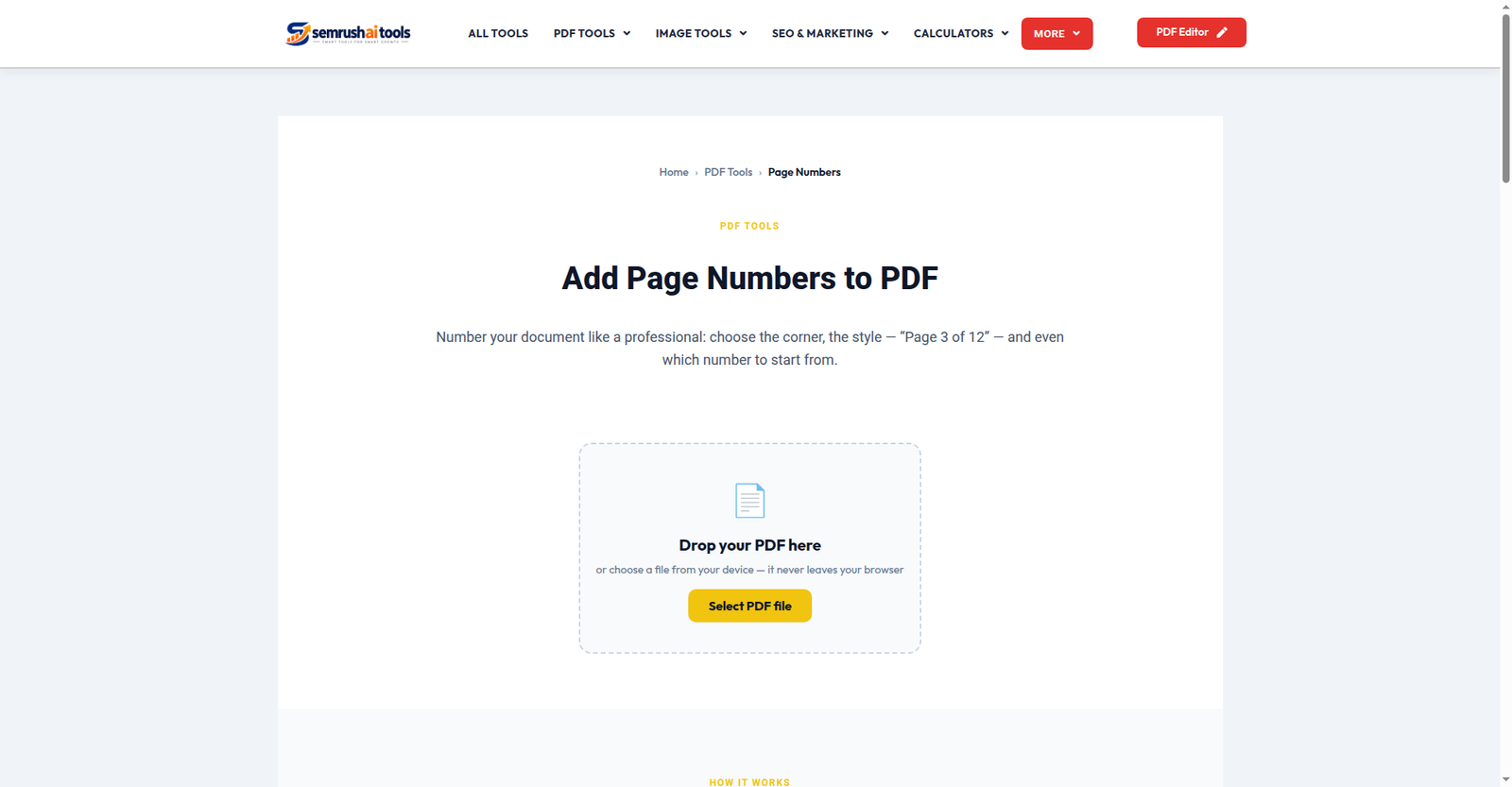
Step 1: Upload your PDF
Open the Page Numbers tool and add your file. Like all the tools here, it runs entirely in your browser — your document is never uploaded anywhere.
Step 2: Choose the position and style
Pick where the numbers should appear — bottom center, bottom right, top left, and so on — and set the starting number and font size. You can preview the result on the pages before committing, so there are no surprises.
Step 3: Add and download
Click to apply. The tool stamps the page numbers onto every page and gives you the finished PDF to download. No watermark on the result — just your document, now properly numbered.
Tips for professional-looking page numbers
- Thesis or book? Start numbering from the first content page rather than the cover, so the cover stays clean.
- Bottom-right is the classic choice for formal reports; bottom-center works well for manuscripts.
- Keep the size modest. Page numbers should help navigation, not compete with the content.
- Pair it with headers: if you also need a document title or date on each page, run the file through the Add Header & Footer tool too.
Frequently asked questions
Will page numbers cover my content? No — they are placed in the page margins, outside your text area.
Can I number only some pages? Split out the pages you want numbered with the Split PDF tool, add numbers, then merge back with the Merge PDF tool.
Is the numbering editable later? The numbers become part of the page graphics, so edit the source before numbering if the document is still changing.
One minute of work makes a 50-page document feel twice as professional. Add page numbers to your PDF now — free, in your browser.
Related: Add Header & Footer · Organize PDF · Watermark PDF