
How to Convert PDF to Word Without Losing the Layout
You receive a PDF, but you need to edit it. The text is there, yet copying and pasting gives you a jumbled mess — lines break in the wrong places, tables collapse, headings lose their formatting. What you actually want is the document back in Word, editable, looking like the original.
That is exactly what a good PDF-to-Word converter does: it rebuilds the document as a real .docx file you can open in Microsoft Word, Google Docs or WPS Office.
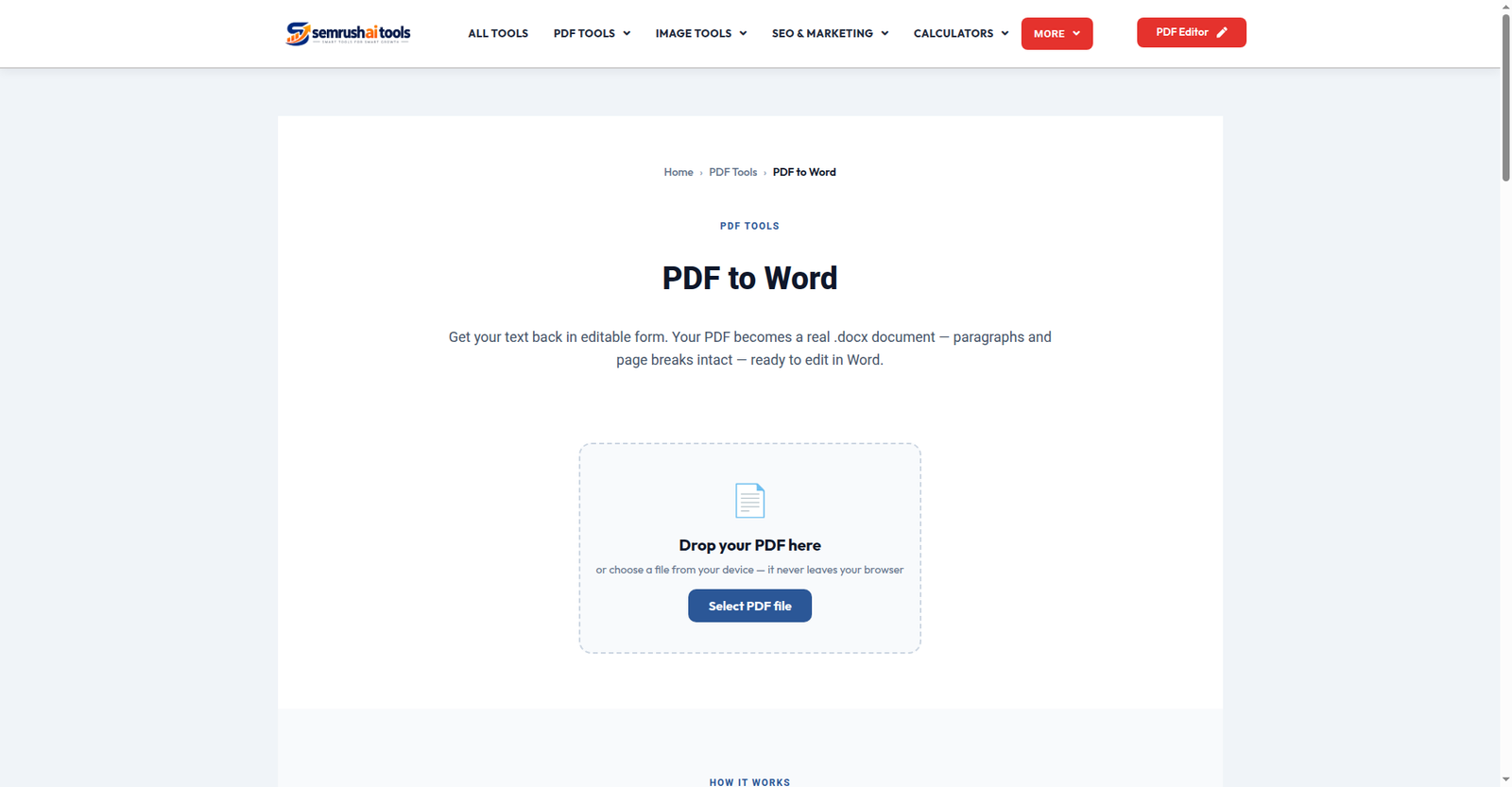
Step 1: Upload your PDF
Open the PDF to Word tool and add your file. Conversion happens in your browser — the document is never uploaded to a server, which matters a lot for CVs, contracts and financial documents.
Step 2: Convert
Click Convert. The tool reads the PDF’s text, detects paragraphs, headings and tables, and builds a genuine Word document from them. Multi-page PDFs convert into a multi-page Word file with the page flow preserved.
Step 3: Open and polish
Download the .docx file and open it in Word or Google Docs. The text is fully editable — change wording, fix typos, restyle headings. Give it a quick once-over: check that tables kept their columns and that no heading slipped into the wrong place.
How to get the best layout match
- Start from a clean PDF. Documents made in Word or Google Docs convert far better than scanned photos of paper.
- Scanned PDF? If your PDF is a scan (no selectable text), convert it to readable text first with the Image to Text OCR tool or extract the text layer, rather than expecting the converter to read images.
- Complex designs (multi-column brochures, heavy graphics) will come out as readable, editable text with approximate layout — not a pixel-perfect clone. For simple text documents — CVs, reports, letters — the match is very close.
- Tables: check merged cells and column widths after conversion; they usually survive, but a quick review saves embarrassment.
Frequently asked questions
Is the output a real Word file? Yes — a genuine .docx, editable in Word, Google Docs and WPS Office. Not a PDF renamed to .doc.
Can I convert a password-protected PDF? Remove the password first with the Remove PDF Password tool, then convert.
How big can the PDF be? There is no artificial task limit; conversion runs on your device.
The honest summary: for normal text documents, you get back an editable Word file that looks very close to the original PDF. Convert your PDF to Word now — free, private, in your browser.
Related: Word to PDF · Extract Text from PDF · PDF to PowerPoint