
Your iPhone takes beautiful photos — then saves them in a format half the internet can’t open. Since iOS 11, iPhones store pictures as HEIC files by default. They look great on your phone and take up less storage space, but try attaching one to an email, uploading it to a job application portal, a college application, an insurance claim form or a dating profile, or opening it on a Windows PC, and you’ll hit the same wall: “file type not supported.”
The fix is simple: convert the HEIC file to a JPG. JPG is the one image format everything understands — every browser, every phone, every printer, every website upload form. Our free HEIC to JPG converter does it right in your browser in seconds, with no sign-up and nothing to install.
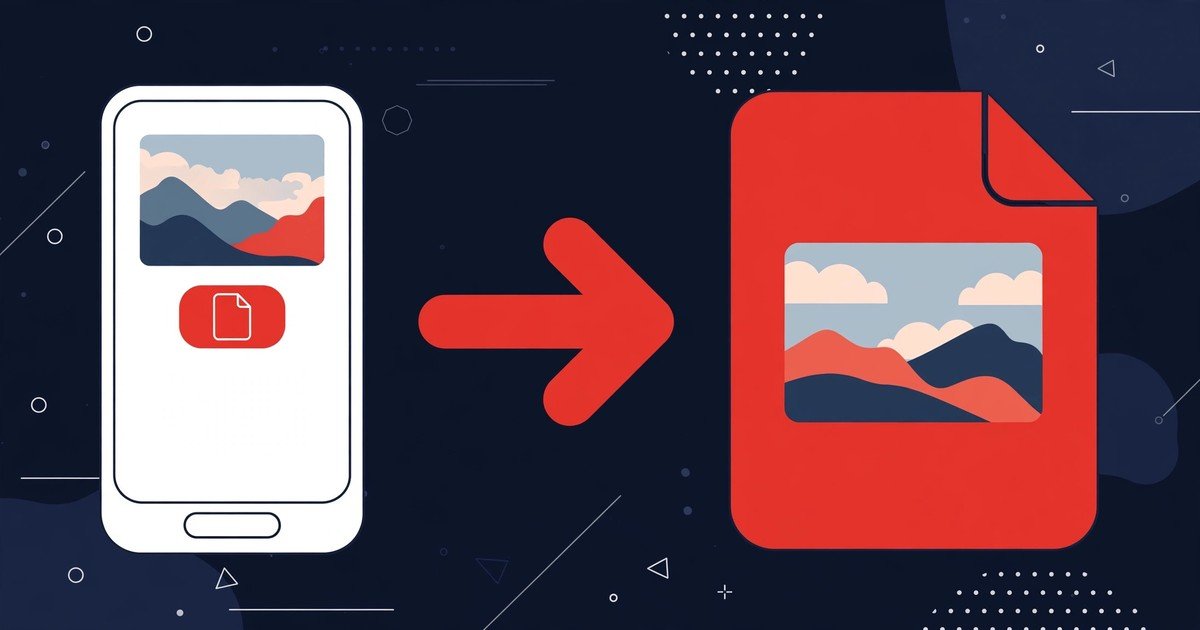
How to convert HEIC to JPG
- Open the HEIC to JPG converter. It runs in any modern browser — Chrome, Safari, Edge or Firefox — on your phone, tablet or computer.
- Upload your HEIC photos. Drag and drop them onto the upload box, or tap to browse your files. You can convert up to 20 photos in a single batch.
- Set the quality (optional). A slider lets you balance file size against image quality. The default 92% is an excellent balance for everyday photos; push it to 100% when you need near-perfect quality.
- Hit Convert All, then download. Every photo gets its own download button, and if you converted several at once, you can grab them all together as one ZIP file.
The whole thing usually takes under a minute — most of that is the few seconds your browser needs to decode each HEIC file.
Why HEIC causes so many problems
HEIC (High Efficiency Image Container) is Apple’s modern photo format, and on paper it’s better than JPG: the same photo takes up roughly half the storage. The catch is compatibility. Outside the Apple world, support is patchy — Windows doesn’t open HEIC files out of the box, many Android apps stumble on them, and countless website upload forms simply reject the .heic extension without telling you why. JPG, for all its age, is the format the entire internet agreed on decades ago. Converting is less about image quality and more about making your photos usable everywhere.
Tips for the best result
- Convert in batches. If you’re moving a whole holiday album off your iPhone, do up to 20 files at once and take the single ZIP download instead of converting one by one.
- Use 100% quality for photos you’ll print. For pictures headed to a print shop or a framed enlargement, the larger file size is worth it. For social media and email, the 92% default is plenty.
- Keep your HEIC originals. JPG conversion is one-way — you can’t get the extra compression back. Archive the originals on iCloud or an external drive before you delete them from your phone.
- Convert before uploading. If a form rejected your photo, don’t assume the file was too big — check the extension first. A rejected .heic file becomes an accepted .jpg in about ten seconds.
- Rename as you go. Downloads arrive with their original names, so give the batch a quick rename (beach-trip-01.jpg and so on) before you upload them anywhere.
Your photos stay private
Unlike most online converters, this tool decodes your HEIC files entirely in your browser. Nothing is uploaded to any server, so family photos, ID documents and anything else you’d rather not hand to a stranger’s website never leave your device — and it still works on the sensitive files you’d never send anywhere else.
Frequently asked questions
Is this HEIC to JPG converter really free?
Yes. There is no sign-up, no limit on conversions and no watermark on your photos.
Will converting to JPG reduce the quality?
Barely, if at all. At 100% quality the result is virtually indistinguishable from the original; at the 92% default you’d need a magnifying glass and a side-by-side comparison to spot any difference.
Can I convert several photos at once?
Yes — up to 20 files per batch, with a single ZIP download containing everything.
Does it work on my phone?
Yes. It works in any modern mobile browser, which is handy when you’re the iPhone user sending photos to someone on Android or Windows.
What’s the difference between HEIC and HEIF?
Almost nothing for your purposes — HEIF is the container standard and HEIC is Apple’s implementation of it. iPhone photos are HEIC files, and this tool converts them the same way.