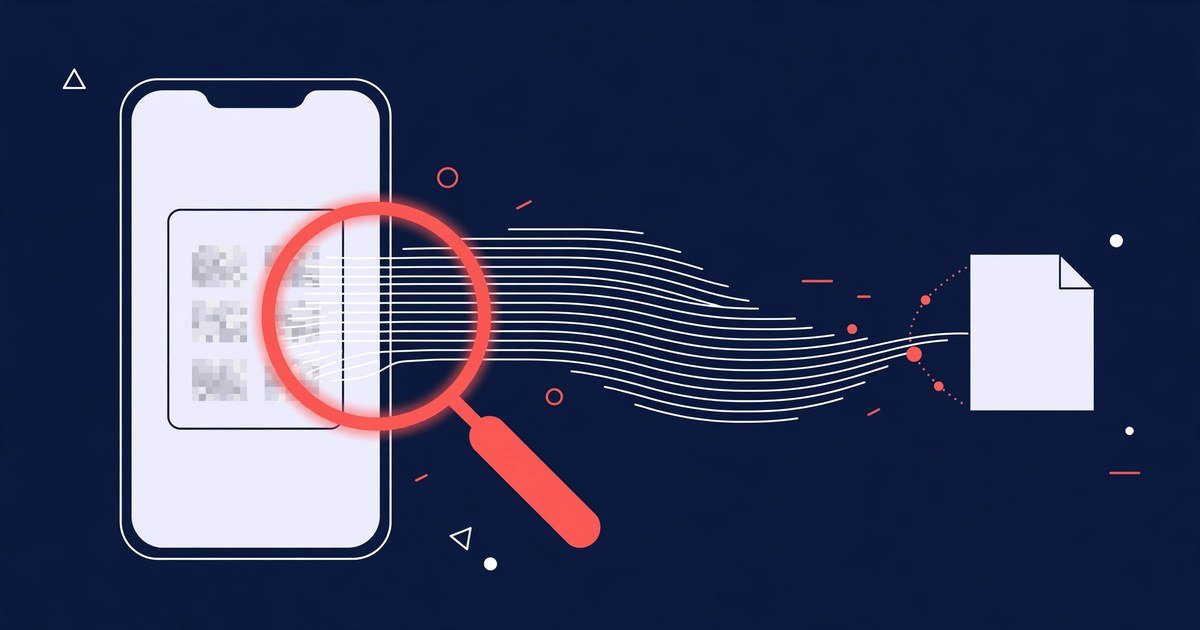
Everyone has been there: retyping a long paragraph from a photo of a document, copying a quote out of a screenshot, or keying in an address from a scanned form. It is slow, tedious and easy to get wrong — and completely unnecessary.
OCR (optical character recognition) reads the text for you. Our free Image to Text tool turns any photo, scan or screenshot into editable text in seconds, right inside your browser. Students use it to digitise lecture slides and whiteboard photos, office workers use it for scanned contracts and receipts, and researchers use it to pull quotes from books and articles without typing a word.
How to extract text from an image
- Open the Image to Text converter.
- Upload your image — drag and drop it, or tap to browse. JPG, PNG, WebP, BMP and most common photo formats work.
- Choose the language of the text in the image, or leave it on automatic detection.
- Click the extract button and wait a few seconds while the tool reads your image.
- Copy the text, or download it as a .txt file — ready to paste into Word, Google Docs, an email or anywhere else.
The whole process usually takes under a minute, and there is nothing to install and no account to create.
Tips for the most accurate result
- Use a sharp, well-lit photo. Blurry or shadowy images are the number one cause of OCR mistakes.
- Keep the page straight. Photograph documents flat and head-on rather than at an angle.
- Crop to the text. Removing borders, hands and backgrounds helps the tool focus on the words.
- Pick the right language. For documents that mix two languages, choose the main one before extracting.
- Use the highest resolution you have. The original photo almost always reads better than a compressed screenshot of it.
More than 100 languages
The tool recognises text in over 100 languages — including English, Spanish, French, German, Portuguese, Hindi, Bengali, Arabic and many more. That makes it just as useful for a Spanish menu on holiday or a German instruction manual as it is for everyday English documents.
Your files stay private
Unlike most online converters, this tool runs entirely in your browser. Your image is never uploaded to a server, so personal documents, ID cards and confidential paperwork never leave your device — and the tool still works on sensitive files you would never send to a stranger’s website.
Frequently asked questions
Is this OCR tool really free?
Yes. There is no sign-up, no daily limit and no watermark — extract text from as many images as you need.
Can I use it on my phone?
Yes. It works in any modern mobile browser, so you can photograph a document and have editable text before you are back at your desk.
What if my text is in a PDF instead of an image?
Use our Extract Text from PDF tool for text-based PDFs, or convert the result further with PDF to Word.
Does it work with handwriting?
Printed text gives the best results. Very neat handwriting is sometimes recognised, but accuracy drops quickly with cursive or messy writing.
Next time you catch yourself retyping something from a picture, stop — let the OCR do it in seconds instead.