
How to Merge PDF Files Free — In the Right Order, Every Time
Course notes in five separate files. A job application that needs your certificate, CV and photo in ONE pdf. A contract scanned page by page. Merging PDFs sounds simple, yet most “free” tools punish you for it: sign-up walls, two-file limits, or a watermark stamped on the result.
Here is a way that has none of that — and one detail most people get wrong: the order of the pages.
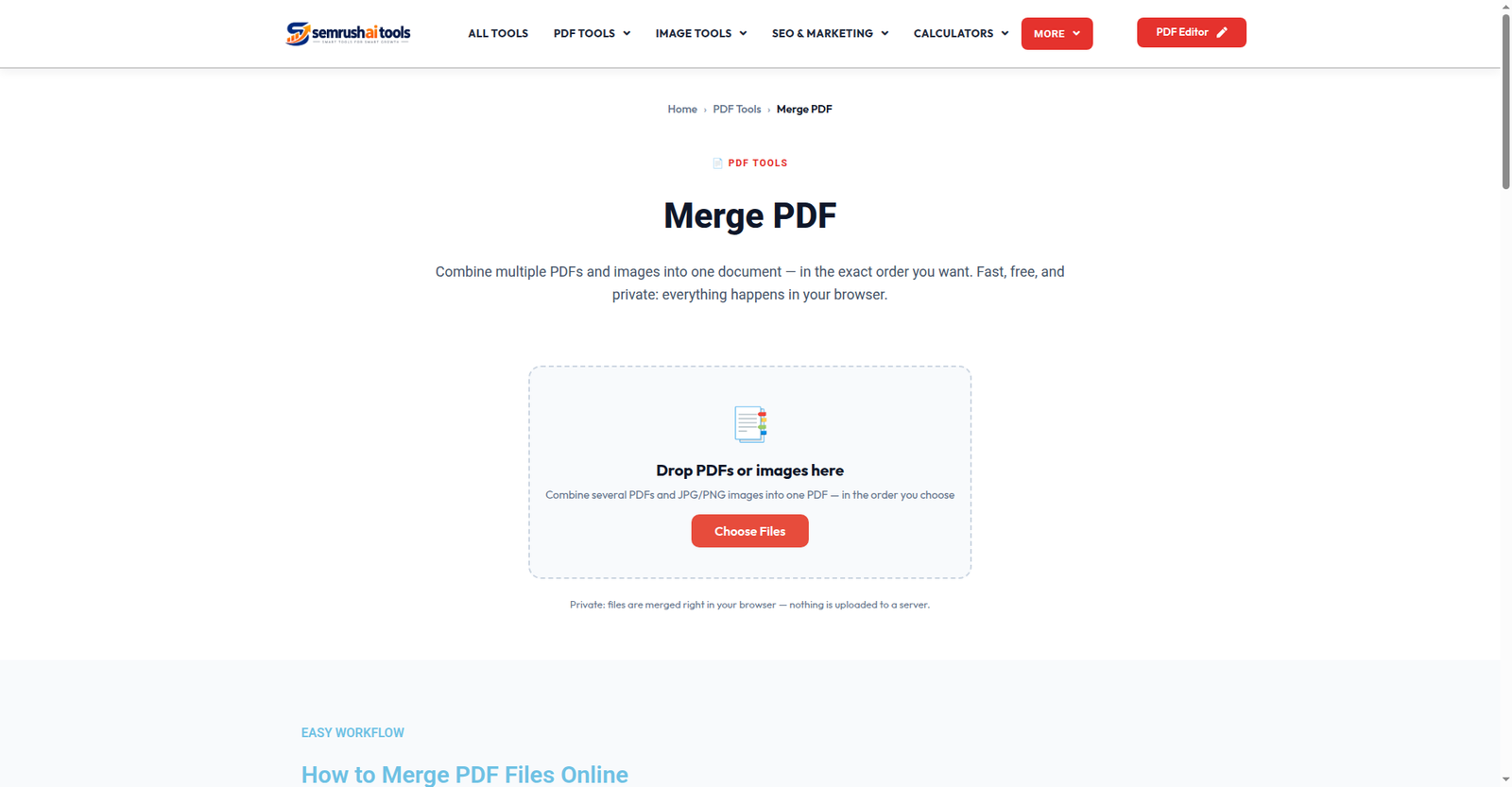
Step 1: Add your files
Open the Merge PDF tool and add your PDFs. You can add several at once, and you can even mix in images (JPG, PNG, WebP) — each image becomes a page in the final file. Everything runs in your browser; the files are never uploaded to a server.
Step 2: Put them in order
Each file appears as a card showing its name, size and page count. Drag a card up or down (or use the arrow buttons) until the order is exactly right. This is the step that decides whether your merged file reads like a document or a mess — check it before you click merge. Wrong file added? Remove it with one tap and add the right one.
Step 3: Merge and download
Click Merge PDF. The tool joins everything into a single file named merged-document.pdf and your download starts — no watermark, no “premium” copy, no email required.
Pro tips
- Name files with numbers first (01-cv.pdf, 02-certificate.pdf) before uploading — they will line up in order automatically in most file pickers.
- Big scans? If the merged file turns out huge, run it through the Compress PDF tool afterwards.
- Pages in the wrong order inside one file? Merging joins whole files. To reshuffle individual pages, use Organize PDF instead.
Frequently asked questions
How many files can I merge? As many as your device can handle — there is no artificial task limit.
Is there a watermark? Never. The output is a clean merged PDF.
Are my files private? Yes. Merging happens entirely in your browser; nothing is uploaded or stored anywhere.
Merging should take less time than finding the files did. Try the free Merge PDF tool and keep everything in one tidy document.
Related: Organize PDF · Split PDF · JPG to PDF