
PDF থেকে Word বানানো — CV ও কাগজপত্র সহজে এডিট করুন
ইমেইলে পেলেন একটা PDF — চাকরির CV-তে একটা তারিখ ভুল, অথবা অফিসের সার্কুলারে একটা লাইন বদলাতে হবে। কিন্তু PDF তো সরাসরি এডিট করা যায় না। তখন অনেকেই পুরো লেখাটা আবার নতুন করে টাইপ করতে বসেন — দশ পেজের ডকুমেন্ট হলে কয়েক ঘণ্টার কাজ, আর তার মধ্যে ভুল ঢুকে যাওয়ার ভয় তো আছেই।
আবার বিশ্ববিদ্যালয়ের অ্যাসাইনমেন্ট বা থিসিসের PDF-এ সুপারভাইজার সংশোধন চাইলেন, কিংবা টেন্ডারের কাগজপত্রে কিছু তথ্য আপডেট করতে হবে — অথচ মূল Word ফাইলটা আর হাতে নেই, হয় হারিয়ে গেছে, না হয় অন্য কারো কাছে। এমন অবস্থায় PDF-কে এডিট করার মতো Word ফাইলে বদলে নেওয়াই সবচেয়ে বুদ্ধিমানের কাজ। আর এটা মিনিটখানেকের ব্যাপার — কোনো সফটওয়্যার ইনস্টল বা অ্যাকাউন্ট খোলা ছাড়াই।
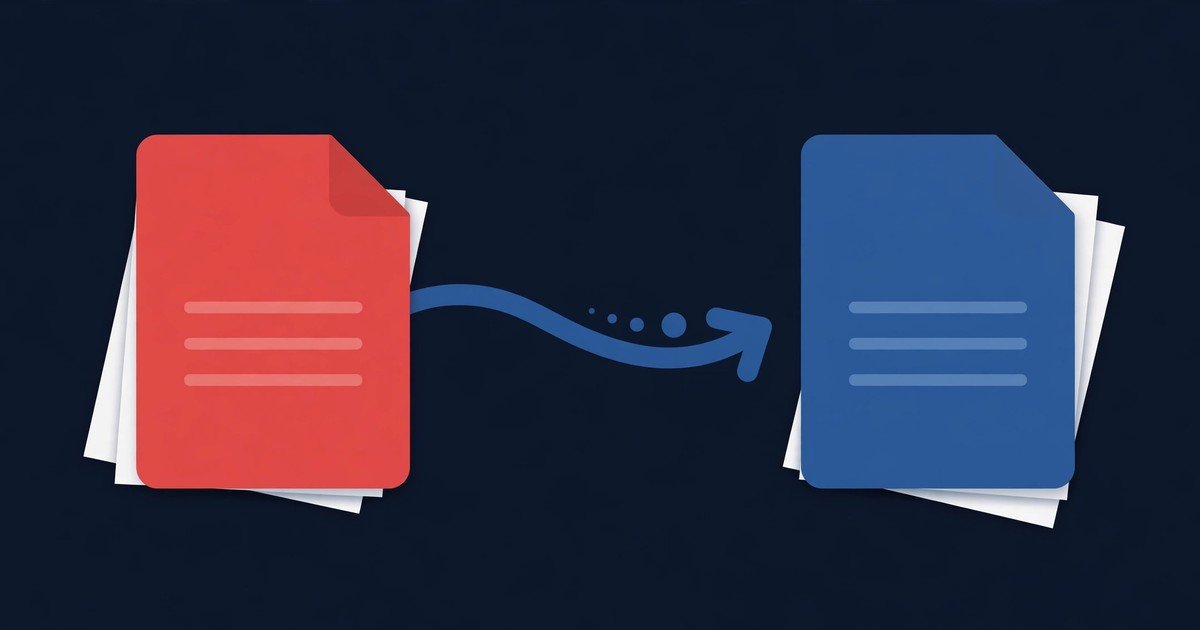
ধাপ ১: PDF ফাইলটা টুলে দিন
ব্রাউজারে PDF to Word টুল খুলুন। Drop your PDF here বক্সে ফাইলটা টেনে এনে ছেড়ে দিন, অথবা বক্সে ক্লিক করে আপনার ডিভাইস থেকে ফাইলটা বেছে নিন। ফোন, ট্যাবলেট বা কম্পিউটার — যেকোনো ডিভাইসের ব্রাউজার থেকেই করা যায়।
এখানেই সবচেয়ে বড় সুবিধা: রূপান্তরের পুরো কাজটা আপনার ব্রাউজারের ভেতরেই হয়। ফাইল কোনো সার্ভারে আপলোড হয় না — তাই CV, ব্যাংকের কাগজ বা অফিসের গোপন ডকুমেন্ট নিয়ে দুশ্চিন্তার কিছু নেই।
ধাপ ২: Convert to Word বাটনে ক্লিক করুন
ফাইল লোড হলে Convert to Word বাটনে ক্লিক করুন। টুলটা PDF-এর পেজগুলো পড়ে ছড়িয়ে থাকা লেখার লাইনগুলোকে আবার আসল প্যারাগ্রাফে সাজিয়ে নেবে। PDF-এ যেখানে পেজ শেষ হয়েছিল, Word ফাইলেও ঠিক সেখানে পেজ ব্রেক বসবে — ফলে লেখার ক্রম ও পেজের ধারাবাহিকতা ঠিক থাকবে।
ধাপ ৩: Word ফাইল ডাউনলোড করে এডিট করুন
কয়েক সেকেন্ডেই আপনার .docx ফাইল তৈরি হয়ে যাবে — ডাউনলোড বাটনে ক্লিক করলেই হাতে পাবেন। এটা আসল Word ডকুমেন্ট, শুধু নাম বদলানো টেক্সট ফাইল নয়। Microsoft Word, Google Docs বা LibreOffice — যেকোনোটায় খুলে সরাসরি এডিট করা, ফরম্যাটিং বদলানো, প্রিন্ট নেওয়া — সব করা যাবে।
কাজের টিপস
- টেক্সট-ভিত্তিক PDF-এ সবচেয়ে ভালো কাজ করে: যেসব PDF কম্পিউটারে টাইপ করে বানানো — CV, অফিসের নোটিশ, অ্যাসাইনমেন্ট — সেগুলোতে ফলাফল চমৎকার হয়।
- স্ক্যান করা ছবি-PDF-এ কাজ করবে না: মোবাইলে তোলা ছবি বা স্ক্যানারের PDF যদি শুধুই ছবি হয় (ভেতরে কোনো টেক্সট লেয়ার নেই), তাহলে তোলার মতো লেখা নেই — টুলটা সেটা জানিয়ে দেবে। এমন ফাইল থেকে লেখা তুলতে Image to Text (OCR) টুল ব্যবহার করুন।
- বাংলা লেখার সীমা জেনে রাখুন: এই টুল ইংরেজি ও অন্যান্য লাতিন-বর্ণের লেখা রূপান্তর করে; বাংলা অক্ষর থাকলে সেগুলো “?” হয়ে যাবে। তাই বাংলা-মিশ্র ডকুমেন্টের জন্য আগে OCR টুলে লেখা তুলে নিন।
- জটিল লেআউট সরল হয়ে আসে: বহু-কলামের পেজ বা জটিল টেবিলের ডিজাইন হুবহু থাকে না — প্যারাগ্রাফ আকারে সাজিয়ে দেওয়া হয়। এটা লেখা এডিট করার জন্য বানানো, ডিজাইন হুবহু কপি করার জন্য নয়।
- পেজ ব্রেক ঠিক থাকে: মূল PDF-এ যেখানে পেজ শেষ, Word ফাইলেও সেখানে পেজ ব্রেক — ফলে লম্বা ডকুমেন্টেও পেজের ক্রম এলোমেলো হয় না।
- ফাইল অনেক বড় হলে: রূপান্তরের আগে Compress PDF টুল দিয়ে ফাইলটা হালকা করে নিলে কাজ আরও দ্রুত হয়।
সচরাচর জিজ্ঞাসা
এই টুল কি সত্যিই ফ্রি?
হ্যাঁ। যত খুশি PDF-কে Word-এ বদলাতে পারবেন — কোনো টাকা, অ্যাকাউন্ট বা ফাইল-সংখ্যার সীমা নেই, আর ফাইলে কোনো ওয়াটারমার্কও বসে না।
আমার ফাইল কি সার্ভারে আপলোড হবে?
না। রূপান্তরের পুরো কাজটা আপনার ব্রাউজারের ভেতরেই হয় — ফাইল আপনার ডিভাইস ছেড়ে কোথাও যায় না। CV বা অফিসের গোপন কাগজের জন্য এটা নিরাপদ।
স্ক্যান করা PDF-এ কি কাজ করবে?
শুধু তখনই, যখন PDF-এর ভেতরে টেক্সট লেয়ার আছে। মোবাইলে তোলা ছবি বা স্ক্যানারের শুধু-ছবি PDF-এ তোলার মতো লেখা থাকে না — এমন ক্ষেত্রে Image to Text (OCR) টুল ব্যবহার করুন।
বাংলা লেখা ঠিকমতো আসবে?
না — বাংলা অক্ষর “?” চিহ্নে বদলে যাবে। এই টুল ইংরেজি ও লাতিন-বর্ণের লেখার জন্য। বাংলা টেক্সট তুলতে OCR টুলটাই সঠিক পছন্দ।
ডকুমেন্টের চেহারা কি হুবহু একই থাকবে?
লেখা, প্যারাগ্রাফ ও পেজ ব্রেক ঠিক থাকে; কিন্তু জটিল টেবিল বা বহু-কলামের ডিজাইন সরলীকৃত হয়। উদ্দেশ্য লেখাটা এডিট করা — ডিজাইন হুবহু কপি করা নয়।
ভুল CV বা পুরনো কাগজ নিয়ে আর নতুন করে টাইপ করার ঝামেলা নয়। ফ্রি PDF to Word টুলটা খুলে দেখুন — আপলোড, কনভার্ট, ডাউনলোড — তিন ধাপেই এডিট করার মতো Word ফাইল হাতে।
সম্পর্কিত: Merge PDF · Compress PDF · Image to Text (OCR)
You have probably been there: a PDF arrives with exactly the photos you need for your presentation, report, or design — and they are locked inside it. Screenshotting them one by one is slow, and the results come out blurry, cropped, and full of page margins. What you actually want is the original picture files, at their full embedded quality.
That is exactly what our free Extract Images from PDF tool does. Upload any PDF and it pulls out every embedded photo, diagram, and illustration — each one shown as a thumbnail with its page number, ready to download individually or all at once as a tidy ZIP file. No sign-up, nothing to install, and the whole thing runs privately inside your browser.
How to extract images from a PDF
- Open the Extract Images from PDF tool.
- Upload your PDF — drag and drop it into the box, or tap to browse your files.
- Wait a moment while the tool scans the document. Every embedded image appears as a thumbnail, labelled with the page it came from.
- Download the ones you need individually, or hit the ZIP option to grab the whole set in one click.
The whole process usually takes under a minute, and there is no account to create and no software to download.
Why extracted images beat screenshots
When you screenshot a photo inside a PDF, you are capturing your screen — not the file. The image gets re-compressed, picks up whatever zoom level you were viewing at, and often includes page borders, toolbars, and other clutter. Extracted images are the actual files embedded in the document: full resolution, clean edges, no interface in the frame.
That matters when the picture has to do real work — printed in a report, zoomed in during a presentation, or dropped into a design file. An extracted image at its original quality holds up; a screenshot falls apart the moment you enlarge it.
Tips for the best results
- Start with the original PDF. A PDF that has been printed and re-scanned only contains photos of pages — there are no embedded images to extract. The tool works best on born-digital documents.
- Check the page numbers on the thumbnails. Each extracted image is labelled with its page, so you can find that one diagram from page 14 without guessing.
- Unlock protected PDFs first. If a PDF is password-protected, the tool cannot open it. Remove the protection first with a tool like our Remove PDF Password utility, then extract the images.
- Use the ZIP for big documents. Manuals, catalogues, and photo books can hold dozens of images. One ZIP download keeps them organised instead of dozens of separate clicks.
- Note the file format. Extracted images keep their original format — usually JPG or PNG — so they drop straight into Word, PowerPoint, Google Slides, or Photoshop without conversion.
Everyday uses
Students pull figures out of research papers and textbooks for revision notes and assignments. Marketers recover brand assets and product shots from old PDFs when the originals are long gone. Real-estate agents grab property photos from listing PDFs for new brochures. Teachers extract diagrams from digital workbooks for classroom slides. And anyone archiving family documents or scanned albums gets the photos out in one clean batch.
Your PDF never leaves your device
Unlike most online converters, this tool runs entirely in your browser. Your PDF is processed locally — it is never uploaded to a server. That means confidential reports, client documents, and personal files stay exactly where they belong: on your computer.
Frequently asked questions
Is this image extractor really free?
Yes. There is no sign-up, no daily limit, and no watermark — extract images from as many PDFs as you like.
Do the extracted images keep their original quality?
Yes. The tool pulls out the embedded image files at their full stored resolution — no recompression, no quality loss, unlike screenshots.
Can I extract images from just one page?
Yes. Every thumbnail shows its page number, so you can download only the images from the pages you care about and skip the rest.
What about scanned PDFs?
A scanned PDF is really a set of page photos, not a document with separate embedded images. For those, use our Image to Text tool to pull text, or PDF to JPG to convert pages into image files.
Will it work with a password-protected PDF?
Not until the password is removed — protected files cannot be opened by any extractor. Unlock it first with our Remove PDF Password tool, then come back.
Next time the perfect photo is trapped inside a PDF, do not reach for the screenshot key — extract it properly in under a minute instead.
Keep reading
- Split a PDF Into Separate Pages — Free, No Sign-Up
- Compress Your Resume PDF to Fit Job Portal Upload Limits — Free, No Sign-Up
- Extract Text from Any Image Online — Free OCR, No Sign-Up
PDF-এ পেজ নম্বর দিন — অ্যাসাইনমেন্ট, রিপোর্ট ও চাকরির কাগজপত্রে
৪০ পেজের থিসিস জমা দিলেন — কিন্তু কোনো পেজেই নম্বর নেই। সুপারভাইজার বললেন, “তিন নম্বর অধ্যায়ের দ্বিতীয় প্যারাগ্রাফটা আরেকবার দেখো” — অথচ তিন নম্বর অধ্যায়টা কোন পেজে, সেটাই খুঁজে বের করতে দশ মিনিট লেগে গেল। অথবা চাকরির ইন্টারভিউতে বললেন, “আমার সার্টিফিকেট ফাইলের ৫ নম্বর পেজে মার্কশিট আছে” — ইন্টারভিউয়ার স্ক্রল করেও বুঝতে পারছেন না কোনটা ৫ নম্বর পেজ।
পেজ নম্বর ছাড়া লম্বা PDF পাঠানো মানে পাঠকের হাতে একটা অগোছালো কাগজের বান্ডিল তুলে দেওয়া। বিশ্ববিদ্যালয়ের অ্যাসাইনমেন্ট, অফিসের মাসিক রিপোর্ট, ব্যাংক লোনের কাগজপত্র, কিংবা অনলাইন আবেদনে আপলোড করা সিভি-সার্টিফিকেটের একটাই ফাইল — সব জায়গায় পেজ নম্বর থাকলে নথিটা দেখায় পেশাদার, আর যেকোনো পেজের রেফারেন্স দেওয়া-নেওয়া অনেক সহজ হয়। ভালো খবর হলো, এই কাজটা মিনিটখানেকের — কোনো সফটওয়্যার ইনস্টল বা অ্যাকাউন্ট খোলা ছাড়াই, শুধু ব্রাউজার থেকেই।
ধাপ ১: PDF টা টুলে তুলুন
ব্রাউজারে Page Numbers টুল খুলুন। ফাইল বাছুন বাটনে ক্লিক করে PDF টা বেছে নিন, অথবা ফাইলটা টেনে এনে বক্সের ওপর ছেড়ে দিন। কম্পিউটার হোক বা ফোন — যেকোনো ডিভাইসের ব্রাউজার থেকেই করা যায়।
এখানেই সবচেয়ে বড় সুবিধা: পুরো কাজটা আপনার ব্রাউজারের ভেতরেই হয়। ফাইল কোনো সার্ভারে আপলোড হয় না, তাই থিসিস, সার্টিফিকেট বা ব্যাংকের কাগজের মতো ব্যক্তিগত নথি নিয়ে দুশ্চিন্তার কিছু নেই।
ধাপ ২: নম্বরের ধরন ও জায়গা ঠিক করুন
ফাইল লোড হলে নম্বরের সেটিংস দেখা যাবে। তিনটা জিনিস ঠিক করে নিন:
🔢 ফরম্যাট — সাধারণ সংখ্যা (1, 2, 3), রোমান সংখ্যা (i, ii, iii) নাকি অক্ষর (A, B, C)? থিসিসের ভূমিকা-সূচিপত্রে রোমান আর মূল অংশে সাধারণ সংখ্যা — এমন পেশাদার সাজও দেওয়া যায়।
📍 অবস্থান — পেজের নিচে মাঝখানে, নিচে ডানদিকে, নাকি উপরে? অফিসিয়াল রিপোর্টে সাধারণত নিচে মাঝখানে বা ডানদিকে বসে। প্রিভিউ দেখে মিলিয়ে নিন।
▶️ শুরু কোন নম্বর থেকে — চাইলে প্রথম পেজ থেকে ১ না বসিয়ে অন্য নম্বর থেকে শুরু করা যায়। কভার পেজে নম্বর না চাইলে সেভাবে সাজিয়ে নিন।
ধাপ ৩: নম্বর বসিয়ে ডাউনলোড নিন
Add Page Numbers বাটনে ক্লিক করুন। কয়েক সেকেন্ডেই প্রতিটা পেজে নম্বর বসে যাবে। তারপর ডাউনলোড বাটনে ক্লিক করলেই নতুন PDF হাতে পাবেন — আসল ফাইলের লেখা, ছবি বা লেআউটে কোনো বদল হবে না, শুধু নম্বরটা যোগ হবে। আর ফাইলে কোনো ওয়াটারমার্ক বসে না।
কাজের টিপস
- থিসিস বা লম্বা রিপোর্টে ভূমিকা-সূচিপত্রের পেজে রোমান সংখ্যা আর মূল অংশে সাধারণ সংখ্যা ব্যবহার করুন — নথিটা দেখাবে একদম প্রফেশনাল।
- সিভি, সার্টিফিকেট, মার্কশিট এক ফাইলে পাঠালে পেজ নম্বর থাকলে ইন্টারভিউতে ফোনে সহজে বলতে পারবেন, “৩ নম্বর পেজে আমার ট্রেনিং সার্টিফিকেট আছে।”
- প্রিন্টের আগে প্রিভিউ দেখুন: নম্বরের রঙ পেজের ব্যাকগ্রাউন্ডের সাথে মিলে যাচ্ছে কিনা যাচাই করে নিন — হালকা পেজে গাঢ় নম্বর সবচেয়ে পরিষ্কার দেখায়।
- স্ক্যান করা PDF-তেও কাজ করে: ফটোকপি স্ক্যান করে বানানো ফাইলেও নম্বর বসানো যায়, লেখা ঝাপসা হয় না।
- নম্বর ভুল জায়গায় বসলে চিন্তা নেই — সেটিং বদলে আবার বসিয়ে নিন, আসল ফাইল অক্ষতই থাকে।
সচরাচর জিজ্ঞাসা
এই টুল কি সত্যিই ফ্রি?
হ্যাঁ। যত খুশি PDF-এ পেজ নম্বর বসাতে পারবেন — কোনো টাকা, অ্যাকাউন্ট বা পেজ-সংখ্যার সীমা নেই, আর ফাইলে কোনো ওয়াটারমার্কও বসে না।
আমার ফাইল কি সার্ভারে আপলোড হবে?
না। নম্বর বসানোর পুরো কাজটা আপনার ব্রাউজারের ভেতরেই হয় — ফাইল আপনার ডিভাইস ছেড়ে কোথাও যায় না। সার্টিফিকেট বা ব্যাংকের কাগজের মতো গোপন নথির জন্য এটা নিরাপদ।
রোমান সংখ্যায় নম্বর দেওয়া যাবে?
যাবে। সাধারণ সংখ্যার পাশাপাশি রোমান সংখ্যা ও অক্ষরের ফরম্যাটও আছে — থিসিসের ভূমিকা অংশে রোমান সংখ্যা ব্যবহার করা যায়।
নম্বর পেজের কোন জায়গায় বসবে, ঠিক করতে পারব?
পারবেন। পেজের উপরে বা নিচে, বামে-মাঝে-ডানে — পছন্দের জায়গা বেছে নিন, প্রিভিউতে দেখে নিশ্চিত হোন।
প্রথম পেজ বাদ দিয়ে নম্বর শুরু করা যাবে?
যাবে। শুরু কোন নম্বর থেকে হবে সেটা ঠিক করে দেওয়া যায় — কভার পেজে নম্বর না চাইলে সেভাবে সাজিয়ে নিন।
You did everything right: the resume is polished, the cover letter is attached, the references are listed. Then the job portal flashes an error — file too large. Many application systems cap uploads at 5 MB or even 2 MB, and a resume saved from Word or scanned at high resolution easily blows past that. On Indeed, LinkedIn Easy Apply, and most company ATS portals, an oversized PDF means your application never gets submitted.
The fix takes less than a minute and does not require signing up anywhere or installing an app. Our free Compress PDF tool shrinks your resume PDF down to fit those upload limits while keeping the text crisp and readable. You choose how small it needs to be — maximum squeeze for strict caps, a balanced middle ground for everyday use, or a quality-first setting when appearance matters most.
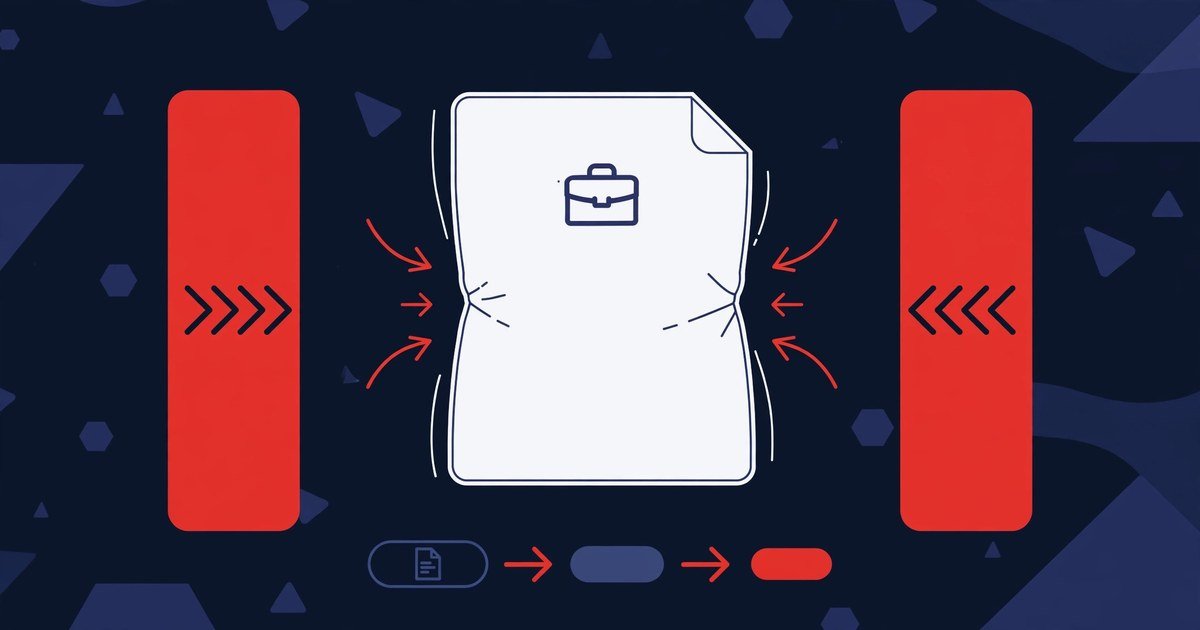
How to compress your resume PDF
1. Open the Compress PDF tool. Click the upload box and select your resume PDF, or simply drag and drop it. The tool instantly shows the file size and page count so you know what you are starting with.
2. Pick a compression level. Choose Maximum if the portal has a strict cap and every kilobyte counts, Balanced for the everyday sweet spot between size and sharpness, or Quality when your resume has fine typography or portfolio pages you want to keep pristine. A good rule: start with Balanced — most resumes fit under a 5 MB cap with room to spare.
3. Compress and download. The tool rebuilds each page as an optimised image in seconds. Before you download anything, it shows you the original size, the new size, and the exact percentage you saved. If your file is already as small as it can get, it tells you honestly instead of handing you a worse copy.
Tips for the best result
- Know the cap before you start. LinkedIn Easy Apply and many ATS portals top out around 5 MB; some smaller company sites use 2 MB. Compressing just under the limit avoids a second round trip.
- Scan quality matters. If your resume started life as a photo or a flatbed scan, save it at 150–200 DPI rather than 600 — the compression tool will have far more room to work with.
- Check the result before uploading. Open the compressed PDF and zoom to 100%. Headlines, contact details and tables should still read cleanly — if something looks fuzzy, re-run at the Quality level.
- One compression is enough. Compressing the same file repeatedly gives diminishing returns and softens text. Always start from the original and pick the right level the first time.
- Resume AND cover letter in one file? You can compress the combined document in the same way — upload the merged PDF and the tool shrinks it as a whole.
Your files stay private
A resume contains your phone number, address and work history — the last thing you want is to send it to a stranger’s server. This compressor runs entirely in the browser, so your file never leaves your device. There is no upload queue, no email verification and no account.
Frequently asked questions
Is this PDF compressor really free?
Yes. Compress as many PDFs as you like — your resume, portfolio, certificates — with no page limits, no watermark and no sign-up.
Will my resume still look professional after compression?
In the Balanced and Quality levels, yes: text stays sharp at normal reading and print sizes. Use Maximum only when the portal cap leaves you no choice, and preview the result first.
How small can it make my file?
It depends on the original. Scanned, image-heavy resumes often shrink by 60–80%; a Word-exported PDF may shrink less because it is already efficient. The tool shows the exact savings before you download, and if nothing can be saved it says so instead of pretending.
Does it work on my phone?
Yes — everything runs in the browser, so you can compress your resume from an iPhone or Android phone right before applying from the couch.
My resume is in Word format. Do I need to convert it first?
Job portals almost always want a PDF, so convert it first with our free Word to PDF tool, then compress the result here.
Keep reading
Related: Word to PDF · Merge PDF · Edit PDF
A rejected upload should never cost you an interview. The next time a portal complains about file size, compress your resume PDF in under a minute and get your application in on time.
PDF ফাইল থেকে পেজ আলাদা করুন — ফ্রি ও সাইন-আপ ছাড়াই
বিশ্ববিদ্যালয়ের লেকচার নোটের ২০০ পেজের PDF — কিন্তু পরীক্ষার আগে দরকার শুধু ৪৫ থেকে ৬০ পেজ। চাকরির আবেদনে চাইল শুধু অভিজ্ঞতার সার্টিফিকেটের পাতাটা, অথচ আপনার কাছে আছে সব সার্টিফিকেট মিলিয়ে একটা ৩০ পেজের ফাইল। আবার স্ক্যান করা জমির দলিলের ১৫ পাতা থেকে ব্যাংকে জমা দিতে হবে শুধু খতিয়ানের পাতাটা।
এমন দরকারে অনেকে পুরো PDF-টাই পাঠিয়ে দেন — যেটা দেখতে অপেশাদার লাগে, আবার অনেক অনলাইন ফরমে ফাইল সাইজের সীমাও থাকে। আবার কেউ কেউ মোবাইলে স্ক্রিনশট নিয়ে পেজ আলাদা করেন, ফলে লেখা ঝাপসা হয়ে যায় আর প্রিন্টে কাজে লাগে না। আসলে দরকারি পেজগুলোকে আসল মান বজায় রেখে আলাদা PDF বানানো মিনিটখানেকের কাজ — কোনো সফটওয়্যার ইনস্টল বা অ্যাকাউন্ট খোলা ছাড়াই।
ধাপ ১: PDF টা টুলে তুলুন
ব্রাউজারে Split PDF টুল খুলুন। Choose PDF File বাটনে ক্লিক করে ফাইলটা বেছে নিন, অথবা ফাইলটা টেনে এনে বক্সের ওপর ছেড়ে দিন। ফাইলটা কম্পিউটারে থাকুক বা ফোনের স্টোরেজে — যেকোনো ডিভাইসের ব্রাউজার থেকেই করা যায়।
এখানেই সবচেয়ে বড় সুবিধা: পুরো কাজটা আপনার ব্রাউজারের ভেতরেই হয়। ফাইল কোনো সার্ভারে আপলোড হয় না, তাই সার্টিফিকেট, দলিল বা ব্যাংক স্টেটমেন্টের মতো ব্যক্তিগত কাগজ নিয়ে দুশ্চিন্তার কিছু নেই।
ধাপ ২: কোন পেজগুলো চান, সেটা বেছে নিন
ফাইল লোড হলে পেজগুলোর থাম্বনেইল দেখা যাবে — অর্থাৎ প্রতিটা পেজের ছোট ছবি। পেজ নম্বর মনে না থাকলেও ছবি দেখে চিনে নিতে পারবেন কোনটা দরকার। এরপর দুইভাবে ভাগ করতে পারেন:
📐 রেঞ্জ দিয়ে ভাগ করা — যখন নির্দিষ্ট অংশ চান। যেমন 1–3 আর 5–8 লিখলে পেজ ১–৩ নিয়ে একটা ফাইল আর পেজ ৫–৮ নিয়ে আরেকটা ফাইল তৈরি হবে। চাকরির ফাইলে থেকে শুধু সার্টিফিকেটের অংশ, বা নোট থেকে শুধু একটা অধ্যায় বের করতে এটাই সবচেয়ে কাজের।
📑 এক্সট্রাক্ট মোড — যখন প্রতিটা পেজকে আলাদা আলাদা ফাইল হিসেবে চান। যেমন ১০ পেজের ফাইল থেকে ১০টা আলাদা PDF। একটা টিকেই সব পেজ আলাদা হয়ে যায়, পেজ পেজ করে হাতে বাছতে হয় না।
একটা দরকারি অপশন আছে — মার্জ। এটা চালু রাখলে আপনার দেওয়া সব রেঞ্জ আলাদা আলাদা ফাইল না হয়ে একটাই PDF-এর ভেতর জমা হবে। যেমন পেজ ২–৪ আর ১০–১২ দুটো অংশই চান, কিন্তু এক ফাইলে — তখন মার্জ অন করে দিন।
ধাপ ৩: স্প্লিট করে ডাউনলোড নিন
Split PDF বাটনে ক্লিক করুন। কয়েক সেকেন্ডেই কাজ শেষ। একাধিক অংশ হলে সবগুলো একসাথে একটা ZIP ফাইলে পাবেন — ডাউনলোড করে আনজিপ করলেই প্রতিটা অংশ আলাদা PDF হিসেবে হাতে পাবেন।
আলাদা হওয়া পেজগুলোর মান হুবহু আসলের মতোই থাকে — লেখা ঝাপসা হয় না, প্রিন্টেও কোনো সমস্যা হয় না। আর ফাইলে কোনো ওয়াটারমার্ক বসে না।
কাজের টিপস
- থাম্বনেইল দেখে নিশ্চিত হোন: রেঞ্জ লেখার আগে পেজের ছোট ছবিগুলো একবার স্ক্রল করে দেখুন। অনেক সময় ভেতরের পেজে কভার বা ফাঁকা পাতা থাকে, ফলে নম্বর এক-দুই এদিক-ওদিক হতে পারে।
- রেঞ্জ লেখার নিয়ম: পেজ ১ থেকে ৩ চাইলে 1-3 লিখুন। একাধিক অংশ চাইলে কমা দিয়ে আলাদা করুন — যেমন 1-3, 5-8।
- এক পেজ চাইলে রেঞ্জই যথেষ্ট: শুধু ৭ নম্বর পেজটা দরকার হলে 7-7 লিখুন — আলাদা মোড বদলানোর দরকার নেই।
- ফাইল বড় হয়ে গেলে: আলাদা করার পর ফাইলটা মেইলে পাঠাতে বা ফরমে আপলোড করতে সাইজ বেশি মনে হলে Compress PDF টুল দিয়ে ছোট করে নিন।
- ভুল পেজ বাদ দিতে চান? পুরো ফাইল থেকে শুধু কিছু পেজ ফেলে দিতে চাইলে রেঞ্জে বাদ-পড়া অংশটুকু বাদ দিয়ে বাকিটা নিন — ফেলে দেওয়া পেজগুলো নতুন ফাইলে আসবেই না।
সচরাচর জিজ্ঞাসা
এই টুল কি সত্যিই ফ্রি?
হ্যাঁ। যত খুশি PDF ভাগ করতে পারবেন — কোনো টাকা, অ্যাকাউন্ট বা পেজ-সংখ্যার সীমা নেই, আর ফাইলে কোনো ওয়াটারমার্কও বসে না।
আমার ফাইল কি সার্ভারে আপলোড হবে?
না। ভাগ করার পুরো কাজটা আপনার ব্রাউজারের ভেতরেই হয় — ফাইল আপনার ডিভাইস ছেড়ে কোথাও যায় না। দলিল বা সার্টিফিকেটের মতো গোপন কাগজের জন্য এটা নিরাপদ।
রেঞ্জ আর এক্সট্রাক্টের পার্থক্য কী?
রেঞ্জে আপনি পেজের দল বানান — যেমন ১–৪ নিয়ে একটা ফাইল, ৫–৯ নিয়ে আরেকটা। এক্সট্রাক্টে বাছাই করা প্রতিটা পেজ আলাদা আলাদা ফাইল হয়ে যায়।
ভাগ করা অংশগুলো একটাই ফাইলে রাখা যাবে?
যাবে। ভাগ করার আগে মার্জ অপশনটা চালু করে দিন — তাহলে সব রেঞ্জ আলাদা ফাইল না হয়ে একটাই PDF-এর ভেতর জমা হবে।
পেজের মান কি কমে যাবে?
না। পেজগুলো হুবহু কপি হয় — লেখা, ছবি, ফরম্যাটিং সব আগের মতোই থাকে।
বড় ফাইল থেকে দরকারি পেজটুকু বের করা আর ঝামেলার কাজ নয়। ফ্রি Split PDF টুলটা খুলে দেখুন — আপলোড, রেঞ্জ বাছাই, ডাউনলোড — তিন ধাপেই কাজ শেষ।
সম্পর্কিত: Merge PDF · Compress PDF · PDF to Word
Your iPhone takes beautiful photos — then saves them in a format half the internet can’t open. Since iOS 11, iPhones store pictures as HEIC files by default. They look great on your phone and take up less storage space, but try attaching one to an email, uploading it to a job application portal, a college application, an insurance claim form or a dating profile, or opening it on a Windows PC, and you’ll hit the same wall: “file type not supported.”
The fix is simple: convert the HEIC file to a JPG. JPG is the one image format everything understands — every browser, every phone, every printer, every website upload form. Our free HEIC to JPG converter does it right in your browser in seconds, with no sign-up and nothing to install.
How to convert HEIC to JPG
- Open the HEIC to JPG converter. It runs in any modern browser — Chrome, Safari, Edge or Firefox — on your phone, tablet or computer.
- Upload your HEIC photos. Drag and drop them onto the upload box, or tap to browse your files. You can convert up to 20 photos in a single batch.
- Set the quality (optional). A slider lets you balance file size against image quality. The default 92% is an excellent balance for everyday photos; push it to 100% when you need near-perfect quality.
- Hit Convert All, then download. Every photo gets its own download button, and if you converted several at once, you can grab them all together as one ZIP file.
The whole thing usually takes under a minute — most of that is the few seconds your browser needs to decode each HEIC file.
Why HEIC causes so many problems
HEIC (High Efficiency Image Container) is Apple’s modern photo format, and on paper it’s better than JPG: the same photo takes up roughly half the storage. The catch is compatibility. Outside the Apple world, support is patchy — Windows doesn’t open HEIC files out of the box, many Android apps stumble on them, and countless website upload forms simply reject the .heic extension without telling you why. JPG, for all its age, is the format the entire internet agreed on decades ago. Converting is less about image quality and more about making your photos usable everywhere.
Tips for the best result
- Convert in batches. If you’re moving a whole holiday album off your iPhone, do up to 20 files at once and take the single ZIP download instead of converting one by one.
- Use 100% quality for photos you’ll print. For pictures headed to a print shop or a framed enlargement, the larger file size is worth it. For social media and email, the 92% default is plenty.
- Keep your HEIC originals. JPG conversion is one-way — you can’t get the extra compression back. Archive the originals on iCloud or an external drive before you delete them from your phone.
- Convert before uploading. If a form rejected your photo, don’t assume the file was too big — check the extension first. A rejected .heic file becomes an accepted .jpg in about ten seconds.
- Rename as you go. Downloads arrive with their original names, so give the batch a quick rename (beach-trip-01.jpg and so on) before you upload them anywhere.
Your photos stay private
Unlike most online converters, this tool decodes your HEIC files entirely in your browser. Nothing is uploaded to any server, so family photos, ID documents and anything else you’d rather not hand to a stranger’s website never leave your device — and it still works on the sensitive files you’d never send anywhere else.
Frequently asked questions
Is this HEIC to JPG converter really free?
Yes. There is no sign-up, no limit on conversions and no watermark on your photos.
Will converting to JPG reduce the quality?
Barely, if at all. At 100% quality the result is virtually indistinguishable from the original; at the 92% default you’d need a magnifying glass and a side-by-side comparison to spot any difference.
Can I convert several photos at once?
Yes — up to 20 files per batch, with a single ZIP download containing everything.
Does it work on my phone?
Yes. It works in any modern mobile browser, which is handy when you’re the iPhone user sending photos to someone on Android or Windows.
What’s the difference between HEIC and HEIF?
Almost nothing for your purposes — HEIF is the container standard and HEIC is Apple’s implementation of it. iPhone photos are HEIC files, and this tool converts them the same way.
Keep reading
ফোনে PDF এডিট করা — কোনো অ্যাপ ছাড়াই
চাকরির আবেদন ফরমটা PDF-এ ডাউনলোড করেছেন — কিন্তু ভেতরে আপনার নামের বানান ভুল। অফিস থেকে মেইলে একটা অফার লেটার এসেছে, বলেছে সই করে আজকের মধ্যেই পাঠাতে। আবার ভর্তির কাগজে একটা তারিখ বদলাতে হবে। হাতে কম্পিউটার নেই, আছে শুধু ফোন — আর প্লে-স্টোরে “PDF এডিটর” লিখে সার্চ করলেই দশটা অ্যাপ, যেগুলোর অর্ধেকই আগে অ্যাকাউন্ট চায়, বাকিগুলো শেষে ফাইলের ওপর নিজেদের ওয়াটারমার্ক বসিয়ে দেয়।
ভালো খবর হলো, এই কাজগুলোর একটার জন্যও আসলে অ্যাপ লাগে না। ফোনের ব্রাউজার থেকেই PDF খুলে লেখা বদলানো, ভুল ঢেকে দেওয়া, হাইলাইট করা, এমনকি সই করে পাঠানো — সবই করা যায়। নিচের পদ্ধতিতে কোনো ইনস্টল নেই, কোনো সাইন-আপ নেই, আর ফাইলটাও আপনার ফোন ছেড়ে কোথাও যায় না।
ধাপ ১: ফোনের ব্রাউজারেই PDF টা খুলুন
ফোনের ক্রোম বা যেকোনো ব্রাউজারে Edit PDF টুল খুলুন। Choose a PDF বাটনে ট্যাপ করে ফাইলটা বেছে নিন — ফাইলটা ফোনের স্টোরেজে থাকুক বা হোয়াটসঅ্যাপ-মেইল থেকে ডাউনলোড করা হোক, সমস্যা নেই।
এখানেই সবচেয়ে বড় সুবিধা: পুরো এডিটিং আপনার ব্রাউজারের ভেতরেই হয়। ফাইল কোনো সার্ভারে আপলোড হয় না, তাই অফার লেটার বা আবেদন ফরমের মতো ব্যক্তিগত কাগজ নিয়ে দুশ্চিন্তার কিছু নেই। আর টুলটা মোবাইল স্ক্রিনের জন্যই বানানো — বাটনগুলো আঙুলে ট্যাপ করার মতো বড়, জুম করলে পেজ পরিষ্কার দেখা যায়।
ধাপ ২: লেখা বদলান, ভুল ঢাকুন, দাগ দিন
টুলবারে কয়েকটা টুল পাবেন — প্রতিটার কাজ আলাদা:
🔤 Edit Text — পেজের যেকোনো লেখার ওপর ট্যাপ করলেই সেটা এডিট মোডে চলে আসে। নামের বানান, ঠিকানা, তারিখ — সরাসরি বদলে দিন, ঠিক যেন ওয়ার্ড ফাইলে লিখছেন।
➕ Text — ফাঁকা জায়গায় নতুন লেখা যোগ করতে চাইলে এই টুল। ফরমের খালি ঘরে নাম-ঠিকানা বসানো, পেজের নিচে নোট লেখা — ট্যাপ করে জায়গা বেছে লিখুন, ফন্ট সাইজও মেলানো যায়।
⬜ Whiteout — যেটা ভুল আছে সেটা পুরো মুছে সাদা করে দিতে চাইলে। পুরনো তারিখ বা ভুল নম্বরের ওপর সাদা বক্স বসিয়ে তার ওপর নতুন লেখা লিখুন — দেখে মনেই হবে না কিছু বদলানো হয়েছে।
🖍 Highlight — গুরুত্বপূর্ণ লাইন বা শর্তের ওপর হলুদ দাগ দিতে। চুক্তিপত্র বা নোটিশে যেসব পয়েন্ট পরে আবার দেখতে হবে, সেগুলো মার্ক করে রাখুন।
একটা পরামর্শ: ফোনে কাজ করার সময় দুই আঙুলে জুম করে নিন। ছোট স্ক্রিনে লেখা ঠিক জায়গায় বসাতে জুম করাটাই সবচেয়ে নির্ভরযোগ্য উপায় — নইলে সই বা লেখা এদিক-ওদিক বসে যেতে পারে।
ধাপ ৩: সই করুন আর ডাউনলোড করে পাঠান
🖋 Sign টুলে ট্যাপ করলে সই করার প্যাড আসবে — আঙুল দিয়ে আপনার সইটা এঁকে নিন। সইটা পেজের যেখানে দরকার সেখানে টেনে বসান, চাইলে ছোট-বড়ও করা যায়। একবার বানানো সই সংরক্ষণ থাকে, তাই পরের কাগজেও আবার আঁকতে হবে না।
সব ঠিকঠাক মনে হলে ডাউনলোড বাটনে ট্যাপ করুন — এডিট করা PDF টা ফোনে সেভ হয়ে যাবে, কোনো ওয়াটারমার্ক ছাড়াই। এবার সেটা সরাসরি মেইলে পাঠান, হোয়াটসঅ্যাপে দিন বা অনলাইন ফরমে আপলোড করুন।
কাজের টিপস
- স্ক্যান করা PDF-এ লেখা বদলাতে চান? আগে 🔠 OCR Page টুলটা চালান — এটা ছবি-আকারের পেজ থেকে লেখা চিনে নেয়, তারপর সেই লেখা এডিট করা যায়। স্ক্যান করা সার্টিফিকেট বা পুরনো কাগজে এটা দারুণ কাজে লাগে।
- অনেকগুলো একই ভুল? 🔎 Find & Replace দিয়ে একবারে সব বদলে দিন — পেজ পেজ ঘুরে খুঁজতে হবে না।
- ফরম পূরণ করছেন? 📋 Form Fields দিয়ে টিকবক্স আর লেখার ঘর ঠিকঠাক বসান; হাতে আঁকার চেয়ে অনেক গোছানো দেখায়।
- ফাইলটা অনেক বড় হয়ে গেলে এডিটের পর Compress PDF টুল দিয়ে সাইজ কমিয়ে নিন — মেইলে পাঠাতে বা ফরমে আপলোড করতে সুবিধা হবে।
- সই করার আগে পেজটা একবার পুরো স্ক্রল করে দেখে নিন — অনেক সময় নিচের পেজে আরেকটা সইয়ের জায়গা থাকে, যেটা চোখ এড়িয়ে যায়।
সচরাচর জিজ্ঞাসা
সত্যিই কোনো অ্যাপ ইনস্টল লাগবে না?
না। শুধু ফোনের ব্রাউজার (ক্রোম, ফায়ারফক্স বা যেকোনোটা) থাকলেই হবে। টুলটা মোবাইল স্ক্রিনেই পুরোপুরি কাজ করে।
আমার ফাইল কি নিরাপদ থাকবে?
হ্যাঁ। এডিটিং পুরোটা আপনার ব্রাউজারের ভেতরে হয় — ফাইল সার্ভারে আপলোড বা সংরক্ষণ করা হয় না।
স্ক্যান করা PDF-এ কি লেখা বদলানো যায়?
সরাসরি না, কারণ স্ক্যান করা পেজ আসলে ছবি। তবে OCR Page টুল দিয়ে লেখা চিনিয়ে নিলে তারপর এডিট করা যায়।
সইটা কি আসল কাগজের মতো দেখাবে?
আপনার হাতের আঁকা সইটাই পেজে বসে, তাই দেখতে স্বাভাবিক লাগে। তবে ব্যাংক বা আইনি কাগজে ডিজিটাল সই গ্রহণযোগ্য কিনা, সেটা সংশ্লিষ্ট অফিস থেকে জেনে নিন।
ফাইলে কি ওয়াটারমার্ক বসবে?
না। ডাউনলোড করা ফাইল একদম পরিষ্কার থাকে — কোনো “ফ্রি ভার্সন” লেখা বা লোগো নেই।
কম্পিউটার না থাকলেই কাগজের কাজ আটকে থাকবে — এমন কোনো কথা নেই। ফ্রি Edit PDF টুলটা ফোনে খুলে দেখুন — লেখা বদলানো থেকে সই করা পর্যন্ত সবই হাতের মুঠোয়।
সম্পর্কিত: Sign PDF · Compress PDF · PDF to Word
Everyone has been there: retyping a long paragraph from a photo of a document, copying a quote out of a screenshot, or keying in an address from a scanned form. It is slow, tedious and easy to get wrong — and completely unnecessary.
OCR (optical character recognition) reads the text for you. Our free Image to Text tool turns any photo, scan or screenshot into editable text in seconds, right inside your browser. Students use it to digitise lecture slides and whiteboard photos, office workers use it for scanned contracts and receipts, and researchers use it to pull quotes from books and articles without typing a word.
How to extract text from an image
- Open the Image to Text converter.
- Upload your image — drag and drop it, or tap to browse. JPG, PNG, WebP, BMP and most common photo formats work.
- Choose the language of the text in the image, or leave it on automatic detection.
- Click the extract button and wait a few seconds while the tool reads your image.
- Copy the text, or download it as a .txt file — ready to paste into Word, Google Docs, an email or anywhere else.
The whole process usually takes under a minute, and there is nothing to install and no account to create.
Tips for the most accurate result
- Use a sharp, well-lit photo. Blurry or shadowy images are the number one cause of OCR mistakes.
- Keep the page straight. Photograph documents flat and head-on rather than at an angle.
- Crop to the text. Removing borders, hands and backgrounds helps the tool focus on the words.
- Pick the right language. For documents that mix two languages, choose the main one before extracting.
- Use the highest resolution you have. The original photo almost always reads better than a compressed screenshot of it.
More than 100 languages
The tool recognises text in over 100 languages — including English, Spanish, French, German, Portuguese, Hindi, Bengali, Arabic and many more. That makes it just as useful for a Spanish menu on holiday or a German instruction manual as it is for everyday English documents.
Your files stay private
Unlike most online converters, this tool runs entirely in your browser. Your image is never uploaded to a server, so personal documents, ID cards and confidential paperwork never leave your device — and the tool still works on sensitive files you would never send to a stranger’s website.
Frequently asked questions
Is this OCR tool really free?
Yes. There is no sign-up, no daily limit and no watermark — extract text from as many images as you need.
Can I use it on my phone?
Yes. It works in any modern mobile browser, so you can photograph a document and have editable text before you are back at your desk.
What if my text is in a PDF instead of an image?
Use our Extract Text from PDF tool for text-based PDFs, or convert the result further with PDF to Word.
Does it work with handwriting?
Printed text gives the best results. Very neat handwriting is sometimes recognised, but accuracy drops quickly with cursive or messy writing.
Next time you catch yourself retyping something from a picture, stop — let the OCR do it in seconds instead.
Keep reading
PDF ফাইল একসাথে মার্জ করুন — সাইন-আপ ছাড়াই, সম্পূর্ণ ফ্রি
চাকরির আবেদন করতে গিয়ে দেখলেন — CV একটা ফাইলে, সার্টিফিকেট আরেকটায়, পাসপোর্ট সাইজ ছবি আরেক জায়গায়। অফিস থেকে বলল, সব একটাই PDF-এ পাঠান। আবার ভার্সিটির প্রজেক্টে পাঁচজন পাঁচটা অংশ লিখে দিয়েছে — পাঁচটা আলাদা ফাইল। কাউকে স্ক্যান করা কাগজপত্র পাঠাতে হচ্ছে, যা স্ক্যান হয়েছে পাতা পাতা আলাদা করে।
একাধিক PDF একসাথে জোড়া দেওয়া শোনায় সহজ, কিন্তু বেশিরভাগ “ফ্রি” টুলে এই একটা কাজেই গাঁইট: আগে সাইন-আপ করো, দুটোর বেশি ফাইল জুড়তে দেবে না, আর শেষে ফাইলের ওপর ওয়াটারমার্ক বসিয়ে দেয়। নিচের পদ্ধতিতে এসবের কিছুই নেই। আর একটা কথা — অনেকে যে জায়গাটায় ভুল করে সেটা হলো পেজের ক্রম। সেটা নিয়েও আলোচনা থাকছে।
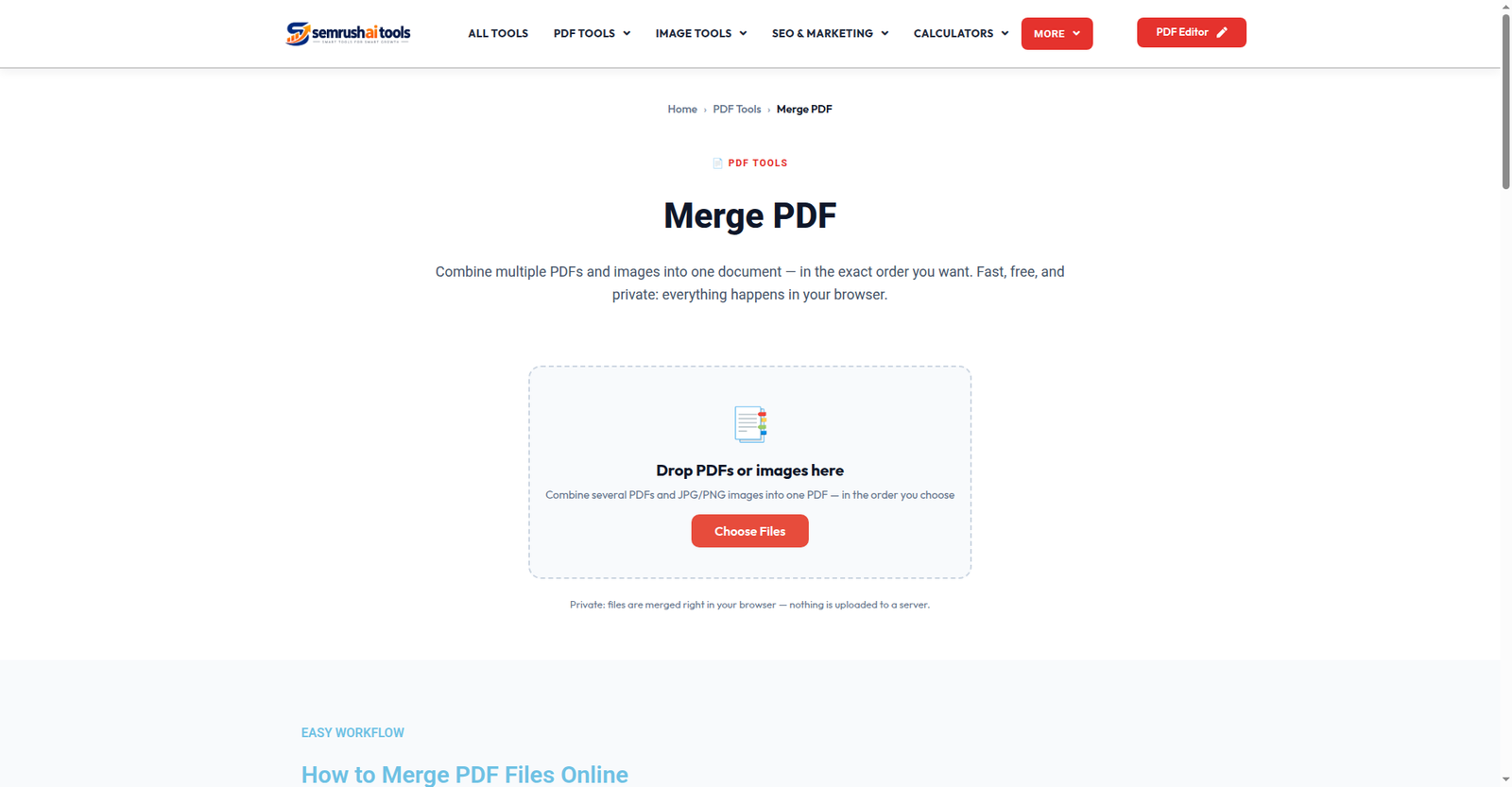
ধাপ ১: ফাইলগুলো যোগ করুন
Merge PDF টুল খুলে আপনার PDF ফাইলগুলো যোগ করুন। একসাথে একাধিক ফাইল নেওয়া যায় — এমনকি ছবিও (JPG, PNG, WebP) মিশিয়ে দিতে পারবেন; প্রতিটা ছবি শেষের ফাইলে একেকটা পেজ হয়ে ঢুকবে। এটা কাজে লাগে যখন কাগজের কপির ছবি তুলে সরাসরি PDF-এর সাথে জুড়তে চান।
সবচেয়ে বড় সুবিধা — পুরো কাজটা আপনার ব্রাউজারের ভেতরেই হয়। ফাইল কোনো সার্ভারে আপলোড হয় না, তাই CV বা সার্টিফিকেটের মতো ব্যক্তিগত কাগজপত্র নিয়ে দুশ্চিন্তার কিছু নেই।
ধাপ ২: ক্রমটা ঠিক করে নিন
প্রতিটা ফাইল একেকটা কার্ড হিসেবে দেখাবে — নাম, সাইজ আর কত পেজ আছে সব লেখা থাকবে। কার্ড টেনে ওপরে-নিচে নিন, অথবা অ্যারো বাটনে ক্লিক করে সাজান। CV আগে না সার্টিফিকেট আগে — এই ধাপেই সিদ্ধান্ত নিন, কারণ মার্জ বাটনে ক্লিক করার পর ক্রম বদলানো যাবে না।
এই একটা ধাপই ঠিক করে দেয় আপনার মার্জ করা ফাইলটা পড়তে গোছানো লাগবে নাকি এলোমেলো। তাই ক্লিক করার আগে একবার চোখ বুলিয়ে নিন। ভুল ফাইল ঢুকে গেলে এক ট্যাপে সরিয়ে সঠিকটা যোগ করে নিন।
ধাপ ৩: মার্জ করে ডাউনলোড করুন
Merge PDF বাটনে ক্লিক করুন। সব ফাইল এক হয়ে merged-document.pdf নামে ডাউনলোড শুরু হবে — কোনো ওয়াটারমার্ক নেই, “প্রিমিয়াম” বলে কোনো আটকানো ফিচার নেই, ইমেইল ঠিকানাও চাওয়া হয় না। ফাইলটা এখন ইমেইলে পাঠানো, আবেদনে আপলোড করা বা প্রিন্ট করার জন্য তৈরি।
কাজের টিপস
- নামের আগে সংখ্যা দিন (01-cv.pdf, 02-certificate.pdf, 03-photo.jpg) — ফাইল বাছাইয়ের সময় এগুলো নিজে নিজে সঠিক ক্রমে সাজবে।
- স্ক্যান করা ফাইল অনেক বড় হয়ে গেলে মার্জের পর Compress PDF টুল দিয়ে সাইজ কমিয়ে নিন — ইমেইলে পাঠানো বা অনলাইন ফরমে আপলোড করা সহজ হবে।
- একটা ফাইলের ভেতরের পেজগুলোই এলোমেলো? মনে রাখবেন, মার্জ করে পুরো ফাইল জোড়া হয়। একক ফাইলের ভেতরে পেজ সাজাতে Organize PDF ব্যবহার করুন।
- মার্জের আগে প্রতিটা ফাইল একবার খুলে দেখে নিন — অনেক সময় স্ক্যান করা পেজ উল্টো থাকে, পরে ঠিক করতে আবার মার্জ করতে হয়।
সচরাচর জিজ্ঞাসা
কয়টা ফাইল একসাথে মার্জ করা যায়?
আপনার ডিভাইস যতটা সামলাতে পারে, ততটাই। কোনো কৃত্রিম সীমা বসানো নেই।
ফাইলে কি ওয়াটারমার্ক বসবে?
কখনোই না। আউটপুট একদম পরিষ্কার মার্জ করা PDF।
আমার ফাইল কি নিরাপদ থাকবে?
হ্যাঁ। পুরো মার্জিং আপনার ব্রাউজারেই হয় — কিছু আপলোড বা সংরক্ষণ করা হয় না।
মোবাইল থেকে করা যাবে?
অবশ্যই। টুলটা মোবাইল ব্রাউজারেও পুরোপুরি কাজ করে, কোনো অ্যাপ ইনস্টল লাগে না।
ফাইল খুঁজে বের করতে যত সময় লাগে, মার্জ করতে তার চেয়ে কম লাগা উচিত। ফ্রি Merge PDF টুলটা ব্যবহার করে দেখুন — সব কাগজপত্র একটাই গোছানো ডকুমেন্টে রাখুন।
সম্পর্কিত: Organize PDF · Split PDF · Compress PDF
আরও পড়ুন
- ছবি থেকে বাংলা লেখা তোলার সহজ উপায় — মোবাইলেই, কোনো অ্যাপ ছাড়া
- স্ক্যান করা PDF থেকে লেখা কপি করার সহজ উপায়
স্ক্যান করা PDF থেকে লেখা কপি করার উপায়
একটা বইয়ের স্ক্যান করা PDF পেলেন — দুই প্যারা লেখা দরকার। কিন্তু মাউস দিয়ে সিলেক্ট করতেই পারছেন না! কারণ স্ক্যান করা PDF আসলে লেখা নয়, ছবি — প্রতিটা পাতা একটা ফটোগ্রাফের মতো। তাই কপি-পেস্ট কাজ করে না।
এই সমস্যার দুটো সমাধান আছে — আপনার PDF কোন ধরনের, সেটা বুঝে সঠিকটা বেছে নিন।
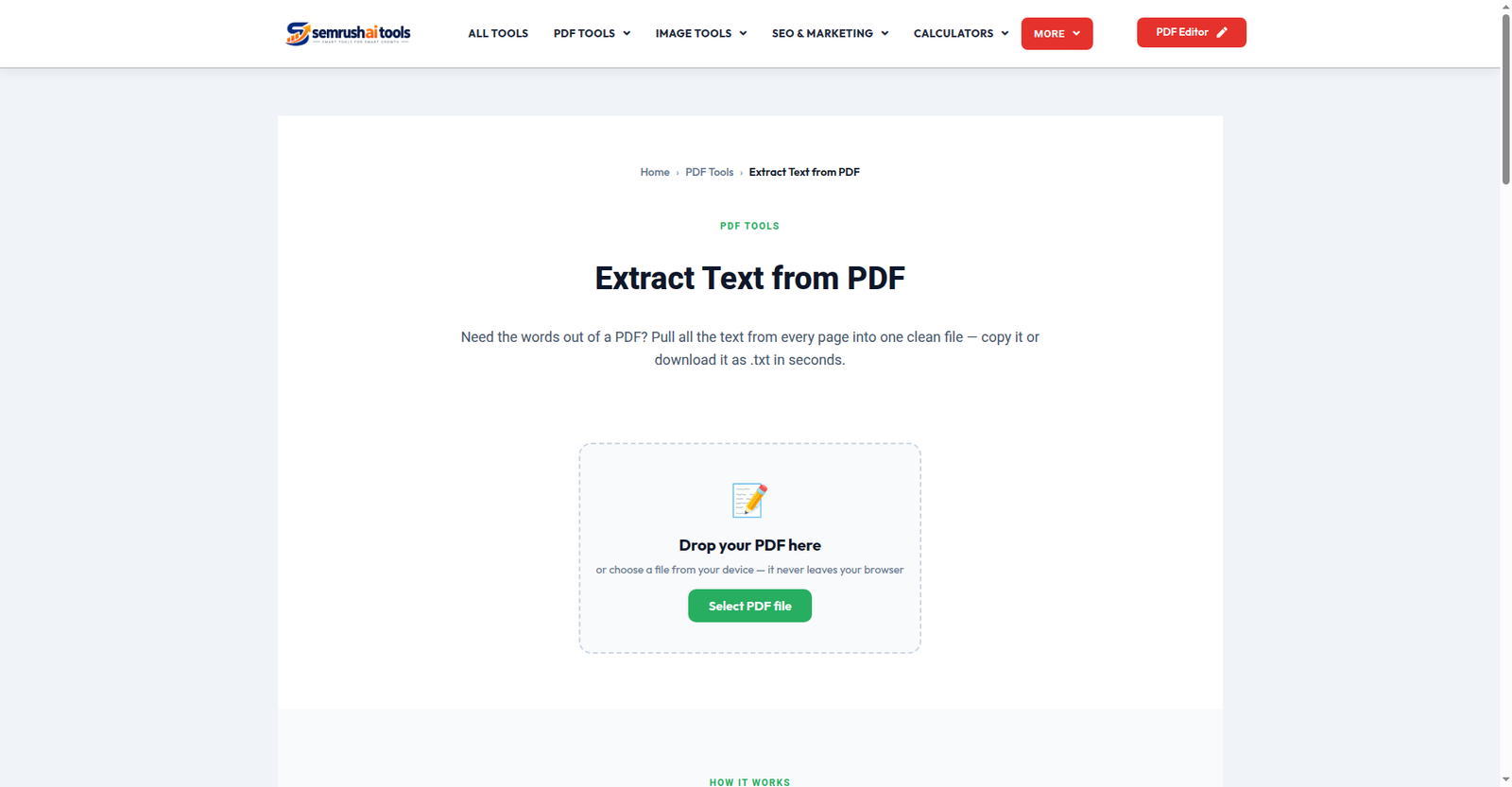
আগে বুঝুন: আপনার PDF কোন ধরনের?
PDF-টা খুলে কোনো লেখার ওপর মাউস দিয়ে টানুন:
- লেখা সিলেক্ট হয় → এটা আসল টেক্সট-PDF। নিচের পদ্ধতি ১ ব্যবহার করুন।
- সিলেক্ট হয় না → এটা স্ক্যান/ছবি-PDF। পদ্ধতি ২ লাগবে।
পদ্ধতি ১: টেক্সট-PDF থেকে লেখা তোলা
ধাপ ১: Extract Text from PDF টুলটি খুলে PDF-টা দিন।
ধাপ ২: Extract চাপুন — পুরো ডকুমেন্টের লেখা টেক্সট আকারে চলে আসবে, পেজ অনুযায়ী সাজানো।
ধাপ ৩: দরকারি অংশ কপি করুন, অথবা পুরোটা .txt ফাইল হিসেবে ডাউনলোড করে রাখুন।
পদ্ধতি ২: স্ক্যান-PDF থেকে লেখা তোলা (OCR)
স্ক্যান করা পাতায় কোনো টেক্সট-লেয়ার নেই, তাই আগে ছবি থেকে লেখা “পড়ে” নিতে হবে — এটাই OCR:
ধাপ ১: Image to Text (OCR) টুলটি খুলুন।
ধাপ ২: স্ক্যান-PDF-এর পাতাগুলো ছবি হিসেবে আপলোড করুন (প্রয়োজনীয় পাতাগুলো স্ক্রিনশট নিয়েও দিতে পারেন)।
ধাপ ৩: Extract Text চাপুন — বাংলা, ইংরেজিসহ ১০০+ ভাষার লেখা পড়ে টেক্সটে বদলে দেবে। বাক্সের ভেতরেই ঠিক করে নিয়ে কপি করুন।
দুটো টুলই পুরো ব্রাউজারে চলে — ফাইল কোনো সার্ভারে ওঠে না।
ভালো ফল পাওয়ার টিপস
- পরিষ্কার স্ক্যান হলে OCR প্রায় নিখুঁত ফল দেয়; ঝাপসা বা বাঁকা স্ক্যানে কিছু ভুল থাকতে পারে — বাক্সে বসেই ঠিক করে নিন।
- বড় ডকুমেন্ট হলে একবারে সব পাতা না দিয়ে দরকারি পাতাগুলো আলাদা করে নিন — দ্রুত হবে।
- টেবিল বা জটিল লেআউট থাকলে লেখা আসবে কিন্তু সাজানো নাও থাকতে পারে — তথ্যটা পাবেন, ফরম্যাটিংটা নিজে ঠিক করে নিতে হবে।
প্রায়শই জিজ্ঞাসিত প্রশ্ন
স্ক্যান-PDF সরাসরি টেক্সট-টুলে দিলে কী হবে? টেক্সট-লেয়ার না থাকায় খালি ফল আসবে — তাই আগে কোন ধরনের PDF বুঝে নিন।
বাংলা লেখা পড়তে পারবে? হ্যাঁ, OCR টুলটি বাংলা খুব ভালোভাবে চেনে।
কপি করা লেখায় ভুল থাকলে? ছাপানো পরিষ্কার লেখায় ভুল কম হয়; তবু গুরুত্বপূর্ণ কাজে ব্যবহারের আগে একবার পড়ে মিলিয়ে নিন।
লেখা কপি না হওয়ার ঝামেলা শেষ। শুরু করুন এখান থেকে: PDF থেকে লেখা তুলুন | স্ক্যান থেকে লেখা পড়ুন (OCR)
আরও দেখুন: PDF থেকে ছবি বের করা · ছবি থেকে বাংলা লেখা · PDF এডিটর